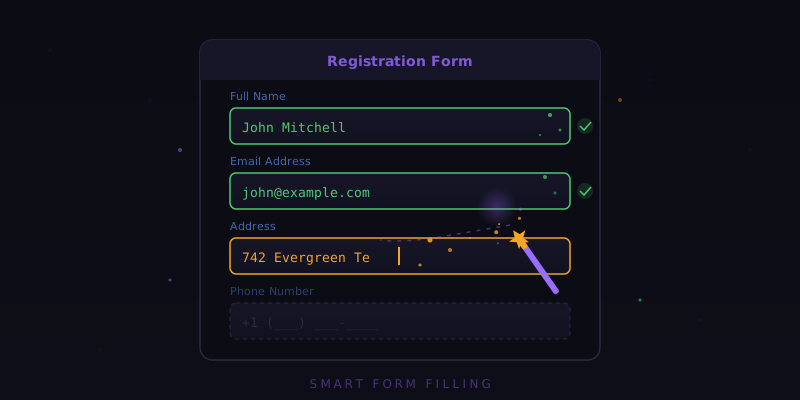
Forms Are Everywhere, and They All Ask the Same Things
Government applications, job forms, insurance claims, school registrations, surveys, event signups. The web runs on forms, and nearly all of them ask for the same information: your name, email, phone number, address, date of birth, and a handful of other details that you have typed hundreds of times before. Browser autofill helps with basic fields, but it falls apart on complex forms with non-standard layouts, multi-step processes, or questions that require more than a simple data entry.
Tensor's Personal Context takes form filling to a completely different level. Instead of matching field names to a fixed set of saved values, Personal Context uses AI to understand what each field is asking for, match it to the most relevant piece of your stored information, and fill it intelligently. It handles everything from simple contact forms to multi-page government applications with dozens of conditional fields.
Setting Up Personal Context
Open the Tensor sidepanel and go to Settings > Personal Context. The setup interface is divided into logical sections that mirror the categories of information forms typically request:
- Identity: Full legal name, preferred name, date of birth, gender, nationality, and citizenship status.
- Contact: Email addresses (personal and professional), phone numbers, mailing address, and emergency contact information.
- Employment: Current and past employers, job titles, start and end dates, salary information, and supervisor details.
- Education: Schools attended, degrees earned, graduation dates, GPA, and relevant coursework.
- Government IDs: Driver's license number, passport details, and other identification numbers you frequently need for official forms.
- Health: Insurance provider, policy numbers, primary care physician, allergies, and medications. This section is optional and particularly useful for medical forms.
- Financial: Annual income range, employer identification for tax forms, and banking institution names. Note that Tensor never stores full account numbers or Social Security numbers for security reasons.
- Custom fields: Any additional information you find yourself repeatedly entering, such as professional license numbers, veteran status, or language proficiencies.
All Personal Context data is encrypted and stored locally on your device. It is never uploaded to any server or shared with any third party. When Tensor fills a form, the data flows directly from your local storage to the browser's form fields without any network transmission.
How Intelligent Field Detection Works
Traditional autofill relies on matching HTML field names and attributes. A field named email gets your email, a field named phone gets your phone number. This breaks down when fields use non-standard names, when labels are images rather than text, or when the form is built with a custom JavaScript framework that does not use standard input elements.
Tensor's approach is fundamentally different. When you ask it to fill a form, the AI agent reads the entire page visually, just as you would. It identifies form fields by their visual labels, surrounding text, placeholder text, and contextual clues. A field labeled "Daytime telephone" is recognized as a phone number field even though it does not contain the word "phone" in its HTML. A dropdown labeled "State/Province" is understood to need your state, not your emotional state.
This visual understanding extends to complex form layouts. Multi-column forms, forms with sections inside accordion panels, tabbed form interfaces, and forms with dynamic fields that appear based on previous answers are all handled naturally because Tensor perceives the form the same way you do.
Filling a Government Application
Government forms are notoriously complex. They often span multiple pages, include conditional sections that appear based on your answers, require specific formatting for dates and phone numbers, and use bureaucratic language that makes even simple questions confusing. Here is how Tensor handles a typical government form:
- Navigate to the form's first page and open the Tensor sidepanel.
- Type: "Fill out this form using my Personal Context."
- Tensor scans the page, identifies all form fields, and maps each to the appropriate Personal Context entry.
- Fields are filled one by one, with Tensor adapting to the expected format. Dates might be MM/DD/YYYY on one form and YYYY-MM-DD on another; Tensor formats accordingly.
- For conditional sections, Tensor answers the triggering question based on your stored information, waits for the conditional fields to appear, then fills those as well.
- When the page is complete, Tensor clicks "Next" and proceeds to the following page, repeating the process until the entire form is filled.
At each step, filled fields are highlighted so you can quickly verify the entries. Tensor never submits the form automatically; it always pauses at the submission step so you can review everything before clicking submit yourself.
Handling Job Application Forms
Job applications often require more than basic contact information. They ask for detailed work history, educational background, references, and sometimes custom questions specific to the role. Tensor's Personal Context is designed to handle all of these:
- Work history tables: Tensor fills in each row of the employment history table with your stored positions, including the "add another" button clicks needed to create additional rows.
- Education sections: Degree type, institution name, field of study, graduation date, and GPA are all mapped from your stored profile.
- References: If you have stored reference contact information in Personal Context, Tensor fills those fields automatically.
- Skills checklists: When a form presents a list of skills with checkboxes, Tensor checks the ones that match skills listed in your Personal Context profile.
Survey and Event Registration Forms
Lighter forms like surveys and event registrations are handled just as smoothly. For event registrations, Tensor fills contact information, dietary preferences, accessibility needs, and session selections based on your stored preferences. For surveys, it can answer demographic questions from your profile while leaving opinion-based questions for you to answer manually.
You can tell Tensor to fill only specific sections of a form if you prefer. Say "Fill just the contact information section" and it will leave everything else untouched. This selective filling is useful when a form mixes straightforward data entry with questions that require your personal judgment.
Privacy and Security Considerations
Personal Context is built with privacy as a foundational principle, not an afterthought. Here are the specific protections in place:
- Local storage only: All data stays on your device. No cloud sync, no server-side storage.
- Encryption at rest: Personal Context data is encrypted using your device's security credentials.
- Explicit activation: Tensor never fills forms without your explicit instruction. There is no automatic filling triggered by page loads.
- Field-level control: You can mark specific fields as "never auto-fill" if you prefer to enter certain information manually every time.
- Audit log: Every form fill action is logged locally so you can review exactly what information was entered and when.
Stop Typing the Same Things
The average person fills out over a hundred forms per year. Between government paperwork, job applications, medical intake forms, event registrations, and online purchases, form filling consumes hours of time that could be spent on anything else. Personal Context in Tensor does not just save keystrokes; it eliminates the cognitive load of remembering account numbers, formatting dates correctly, and double-checking that you spelled your street name the same way as last time. Set it up once, and every form becomes a one-click task.