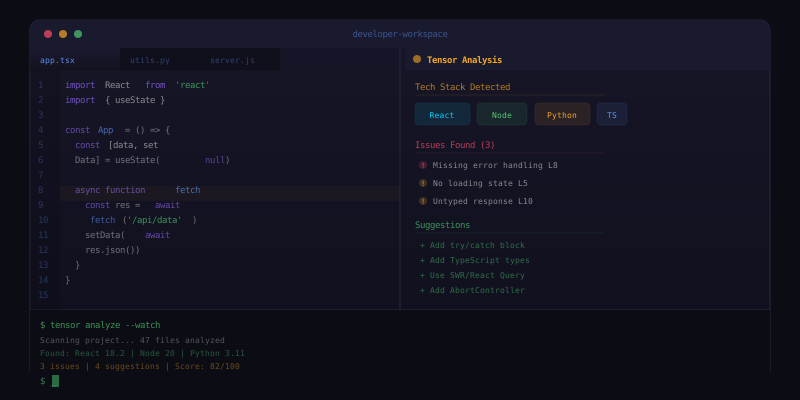
Built by Developers, for Developers
Tensor is designed for everyone, but developers get an extra layer of power tools that transform how they work in the browser. From a built-in code sandbox to automatic tech stack detection, from console monitoring to a structured JSON viewer, Tensor turns Chrome into a proper development environment. This article walks through every developer-focused feature and shows how engineers use Tensor differently from the general user base.
Code Forge: The Built-In Code Sandbox
Code Forge is Tensor's integrated code execution environment. It lets you write, run, and preview code directly in the browser sidepanel without switching to a separate editor, terminal, or development server. Open Code Forge from the Tensor menu or type /code in the chat, and you get a clean editor pane with syntax highlighting, auto-completion, and live preview.
Code Forge supports four languages out of the box:
- JavaScript: Execute JS directly in an isolated context. Perfect for testing utility functions, experimenting with APIs, or prototyping logic before integrating it into your project. The output appears in a console pane below the editor, and you have full access to modern ES2024+ syntax.
- HTML & CSS: Write markup and styles that render in a live preview pane. Changes update in real time as you type. This is ideal for prototyping components, testing responsive layouts, or quickly mocking up a UI idea without spinning up a full project.
- Python: Run Python code using a WebAssembly-based interpreter. While it does not replace a full Python environment, it handles data processing, algorithm prototyping, and quick scripting tasks. Standard library modules are available, and you can install common packages like numpy and pandas from the built-in package manager.
The AI integration is what elevates Code Forge beyond a basic sandbox. You can describe what you want to build in natural language, and Tensor generates the code for you. Say "Create a responsive card component with an image, title, and description" and Code Forge produces the HTML and CSS with a live preview. You can then edit the generated code directly, ask for modifications, or iterate through conversation.
Tech Stack Detection
When you land on any website, Tensor can instantly identify the technologies powering it. Click the Tech Detection button or type /tech to get a comprehensive breakdown of the current site's stack:
- Frontend frameworks: React, Vue, Angular, Svelte, Next.js, Nuxt, and dozens of others are detected by analyzing script bundles, global variables, and DOM patterns.
- CSS frameworks: Tailwind CSS, Bootstrap, Material UI, Chakra UI, and other styling frameworks are identified by class naming conventions and stylesheet patterns.
- JavaScript libraries: jQuery, Lodash, Moment.js, D3, Three.js, and hundreds of other libraries are detected through their global exports and script signatures.
- Analytics and tracking: Google Analytics, Mixpanel, Segment, Amplitude, Hotjar, and other analytics platforms are identified, along with their version numbers when available.
- Server technologies: HTTP headers reveal server software (Nginx, Apache, Cloudflare), programming languages (PHP, Python, Ruby via header fingerprints), and CDN providers.
- CMS and platforms: WordPress, Shopify, Webflow, Squarespace, and other platforms are detected through meta tags, asset URLs, and structural patterns.
The results are presented in a clean, categorized view. This is invaluable for competitive research, learning how top-performing sites are built, or quickly understanding a client's existing technology choices before proposing solutions.
Console and Network Monitoring
Chrome DevTools is powerful but requires switching contexts and takes up significant screen real estate. Tensor provides a streamlined console and network monitor that surfaces the most important information directly in the sidepanel, letting you stay in your workflow while monitoring what is happening under the hood.
The Console Monitor captures console.log, console.error, console.warn, and console.info messages from the current tab. Messages are color-coded by level, searchable, and filterable. You can set up persistent console watchers that alert you when specific error patterns appear, which is useful for monitoring production applications where you want to catch errors without keeping DevTools open.
The Network Monitor tracks all HTTP requests from the current tab, showing method, URL, status code, response time, and payload size. You can filter by request type (XHR, fetch, script, image), status code range, or URL pattern. Clicking any request shows the full request and response headers, plus the response body formatted for readability.
Both monitors integrate with Tensor's AI capabilities. You can ask Tensor to analyze your console errors, explain what a specific network request is doing, or identify performance bottlenecks in your request waterfall. The AI has full context of both the page content and the monitoring data, making it a powerful debugging assistant.
JSON Viewer and API Inspector
Developers frequently encounter raw JSON data in browser tabs, whether from API responses, webhook payloads, or configuration files. Tensor's JSON Viewer automatically detects when a tab contains JSON and renders it in a collapsible, syntax-highlighted tree view with the following features:
- Collapsible nodes: Expand and collapse objects and arrays to navigate large JSON structures efficiently.
- Search: Find keys or values anywhere in the JSON document instantly.
- Path copying: Click any node to copy its JSONPath to the clipboard, making it easy to reference specific fields in code.
- Type indicators: Values are color-coded by type: strings, numbers, booleans, null, arrays, and objects each have distinct styling.
- Size annotations: Arrays show their element count and objects show their key count at a glance.
The API Inspector extends JSON Viewer for API development workflows. When you navigate to an API endpoint, the inspector shows the response alongside the request details, headers, and timing. You can modify the request parameters and re-send, effectively turning your browser into a lightweight Postman alternative. Combined with Tensor's AI, you can ask questions about the response structure, generate TypeScript interfaces from JSON responses, or have Tensor write client code to consume the API.
Developer-Specific AI Commands
Tensor includes several AI commands designed specifically for developer workflows:
/explain: Select any code snippet on a page and ask Tensor to explain what it does, line by line./debug: Paste an error message and Tensor analyzes it in the context of the current page, suggesting likely causes and fixes./optimize: Share a code snippet and get performance optimization suggestions with explanations./convert: Convert code between languages or frameworks. Convert a React component to Vue, translate JavaScript to TypeScript, or transform a REST call to GraphQL./regex: Describe a pattern in natural language and Tensor generates the regular expression with test cases.
These commands work with any code visible in the browser, whether it is in a code editor like GitHub or VS Code for the Web, in documentation, in a Stack Overflow answer, or in the page source. The AI understands the code's context on the page and provides responses tailored to the specific framework and language being used.
How Developers Use Tensor Differently
While general users primarily interact with Tensor through natural language chat and agent automation, developers tend to use it as a persistent development companion. A typical developer session might involve reading documentation with Tensor summarizing key sections, prototyping a component in Code Forge while referencing a design system in another tab, using Tech Detection to understand how a competitor implemented a similar feature, monitoring console errors on a staging deployment, and using the JSON Viewer to inspect API responses during integration testing.
The common thread is that Tensor eliminates context-switching. Instead of juggling between an editor, a terminal, DevTools, a documentation site, and a chat application, everything lives in the sidepanel alongside whatever page you are working with. This colocation of tools and intelligence is what makes Tensor uniquely valuable for developers.
Start Building Smarter
Whether you are a frontend developer prototyping components, a backend engineer debugging API integrations, or a full-stack developer managing complex projects, Tensor's developer tools save hours every week by bringing intelligence and tooling directly into your browser. Every feature works with Tensor's AI layer, meaning you are never just running a tool in isolation; you always have an intelligent assistant that understands both the tool output and the broader context of your work.