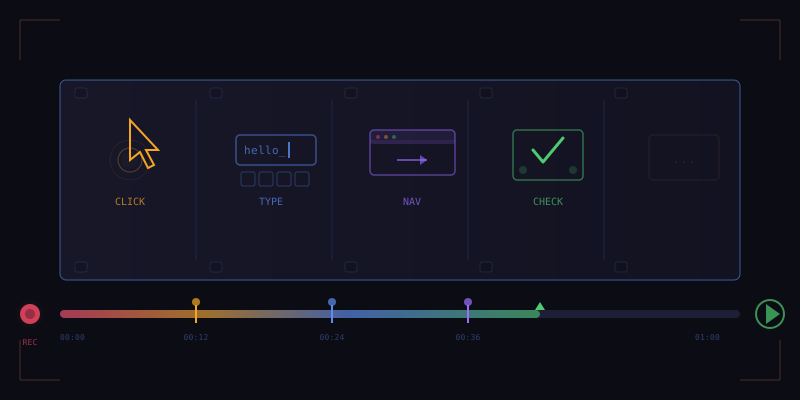
You do the same things in your browser every day. Check a dashboard, export a report, fill out a timesheet, monitor a competitor's pricing page, post an update to a platform. Each task takes only a few minutes, but multiplied across days and weeks, the cumulative time is significant. Tensor's workflow recording system lets you automate any browser task by simply doing it once. Record your actions, save the workflow, replay it on demand, and schedule it to run automatically. No coding required.
Step 1: Recording a Workflow
To start recording, open the Tensor command palette with Ctrl+Shift+T (or Cmd+Shift+T on Mac) and select "Record Workflow," or click the record button in the Tensor sidebar. A red recording indicator appears in the top-right corner of your browser, confirming that Tensor is capturing your actions.
Now simply perform the task as you normally would. Navigate to pages, click buttons, fill in forms, scroll, select options from dropdowns, type text. Tensor captures every action along with its full context: the URL, the target element's fingerprint (using the self-healing selector system), any text you typed, the timing between actions, and the state of the page before and after each action.
While recording, you can add annotations by clicking the note icon in the recording toolbar. Annotations serve as documentation for future you: "This is where I select the date range" or "Wait here for the export to generate." They do not affect replay but make the workflow much easier to understand and modify later.
- Navigate to the starting URL
- Interact with elements: click, type, select, scroll
- Wait for dynamic content to load (Tensor detects these automatically)
- Annotate steps for future reference
- Extract data by highlighting text or tables you want to capture
When you are done, click the stop button or press the keyboard shortcut again. Tensor presents you with a summary of the recorded workflow: each step listed in order with a description, the target element, and an optional screenshot of what the page looked like at that point.
Step 2: Reviewing and Editing
Before saving, you should review the recorded steps and clean them up. The workflow editor shows each action as a card in a vertical timeline. You can reorder steps by dragging them, delete unnecessary actions (like accidental clicks), and modify action parameters.
The editor also lets you add conditional logic without coding. For example, you can insert an "if element exists" condition that branches the workflow based on whether a particular element is present on the page. This is useful for handling variable states: if a cookie consent banner appears, click "Accept" and continue; otherwise, skip to the next step.
// Workflow definition (auto-generated, editable)
{
  "name": "Weekly Report Export",
  "steps": [
    {
      "action": "navigate",
      "url": "https://dashboard.example.com/reports",
      "waitFor": ".report-table"
    },
    {
      "action": "click",
      "target": { "text": "Last 7 Days", "role": "button" },
      "note": "Select the weekly date range"
    },
    {
      "action": "wait",
      "condition": "networkIdle",
      "timeout": 10000
    },
    {
      "action": "click",
      "target": { "text": "Export CSV", "role": "menuitem" },
      "note": "Download the report"
    },
    {
      "action": "waitForDownload",
      "timeout": 30000,
      "rename": "weekly-report-{date}.csv"
    }
  ],
  "settings": {
    "checkpoints": true,
    "selfHealingSelectors": true,
    "screenshotOnError": true
  }
}
You can also parameterize steps. If your workflow fills in a date range, you can convert the hardcoded dates into parameters that are prompted at runtime or calculated automatically (such as "last Monday" or "first of the month"). This turns a rigid recording into a flexible template.
Step 3: Replay with Checkpoints
To replay a workflow, select it from the Workflows panel in the Tensor sidebar and click "Run." The replay engine executes each step sequentially, using self-healing selectors to find target elements even if the page layout has changed since recording.
Tensor's checkpoint system is what makes replay robust in the real world. Before each significant action, the engine creates a checkpoint: a snapshot of the current state including the URL, DOM snapshot, and any extracted data. If a step fails, the replay pauses and presents the error with context. You can fix the issue manually and resume from the last checkpoint rather than restarting the entire workflow.
The checkpoint system also supports partial replays. If your workflow has ten steps and you only need to re-run steps 7 through 10, you can start from checkpoint 6. This saves time when debugging or when only the final steps of a long workflow need to be repeated.
During replay, you see a live overlay showing the current step, progress percentage, and any data being extracted. The replay runs at full speed by default, but you can set it to run at recorded speed (matching the original timing) or step-by-step (pausing after each action for verification). Step-by-step mode is useful when testing a workflow for the first time to ensure each action produces the expected result.
Step 4: Scheduling with Chrome Alarms
The real power of workflow automation comes from scheduling. Instead of manually triggering a replay, you can schedule workflows to run at specific times or intervals. Tensor uses Chrome's alarms API to manage scheduling, which means schedules persist across browser restarts and do not require any external services.
The scheduling interface offers several options:
- One-time — run the workflow once at a specific date and time
- Daily — run every day at a specified time
- Weekly — run on selected days of the week at a specified time
- Interval — run every N minutes or hours
- Cron expression — for advanced users, specify any schedule using standard cron syntax
When a scheduled workflow triggers, Tensor opens a background tab (or uses an existing one), executes the workflow silently, and notifies you when it completes. The notification includes a summary: how many steps executed, any data extracted, whether any steps required self-healing, and the total execution time.
// Schedule configuration
{
  "workflowId": "weekly-report-export",
  "schedule": {
    "type": "weekly",
    "days": ["monday"],
    "time": "09:00",
    "timezone": "America/New_York"
  },
  "notifications": {
    "onSuccess": true,
    "onFailure": true,
    "failureEmail": "yiming@example.com"
  },
  "retry": {
    "maxAttempts": 3,
    "delayMinutes": 5
  }
}
Error Handling and Recovery
Automated workflows inevitably encounter errors. A page might load slowly, a button might be temporarily unavailable, or an unexpected modal might appear. Tensor's error handling is designed to be resilient without being reckless.
When a step fails, the engine first tries self-healing: finding the target element through alternative selectors. If self-healing succeeds, the workflow continues transparently. If it fails, the engine checks for common recoverable situations: page not fully loaded (retry after waiting), unexpected overlay (try to dismiss it), authentication required (pause and notify the user).
For persistent failures, the engine uses the retry policy configured in the workflow settings. By default, it retries a failed step three times with exponential backoff: first wait 5 seconds, then 15 seconds, then 45 seconds. If all retries fail, the workflow pauses at the checkpoint and sends a failure notification with a screenshot and the error details.
The error recovery system also learns from past failures. If a specific step consistently requires self-healing, Tensor updates the stored selectors preemptively. If a step consistently fails at certain times of day, perhaps due to server load, Tensor suggests adjusting the schedule.
Advanced Features: Loops, Data Tables, and Chaining
For more complex automation, workflows support three advanced features. Loops let you repeat a set of steps for each item in a list, such as processing each row in a data table or each URL in a list. Data tables let you feed external data into a workflow, filling in forms with different values for each iteration. Chaining lets you connect multiple workflows in sequence, where the output of one workflow becomes the input of the next.
Together, these features enable sophisticated automation scenarios. Consider a monthly invoicing workflow: read client names from a spreadsheet, for each client navigate to the billing system, generate an invoice with the correct amount, download the PDF, and email it to the client. With loops, data tables, and chaining, this entire multi-step process runs unattended.
Browser automation should not require programming skills. If you can do a task in your browser, you should be able to automate it by doing it once. That is the principle behind Tensor's workflow recording, and it transforms hours of repetitive work into a single click.
Automate Your Browser Today
Download Tensor and start recording workflows that save you hours every week.
Download Tensor