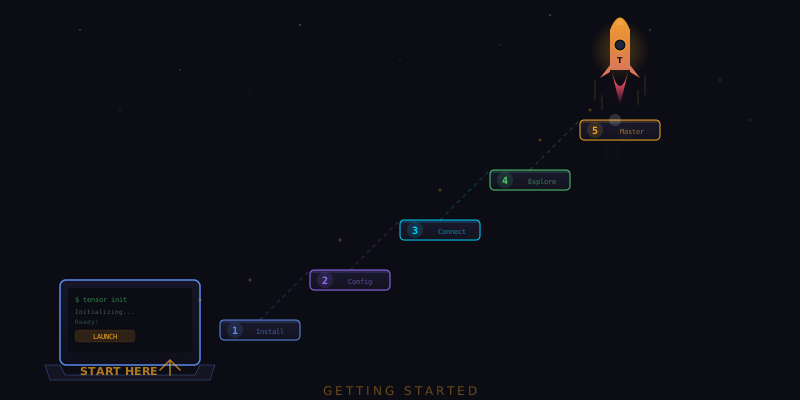
Welcome to Tensor
You have just discovered the most powerful AI browser extension available. Over the next ten minutes, you are going to install Tensor, explore its core capabilities, and experience several quick wins that demonstrate why thousands of users rely on it every day. By the time you finish this guide, you will know how to chat with AI about any webpage, take and annotate screenshots, read and summarize entire pages, navigate the web with voice commands, and auto-fill forms. Let us get started.
Minute 1-2: Install Tensor
Installing Tensor takes about thirty seconds. Head to the Chrome Web Store, search for "Tensor AI Browser," and click Add to Chrome. Confirm the permissions dialog and you are done. The Tensor icon appears in your browser toolbar immediately. You do not need to create an account, enter a credit card, or configure anything. Tensor works out of the box with generous free-tier usage.
Once installed, you will see a brief welcome screen that introduces the key features. You can read through it or skip directly to using Tensor. The extension is lightweight and does not slow down your browsing. It activates only when you open the sidepanel or trigger a specific action.
Minute 2-3: Open the Sidepanel and Start Chatting
Click the Tensor icon in your toolbar to open the sidepanel. This is your primary interface for interacting with Tensor. The sidepanel slides in from the right side of the browser and stays open alongside whatever page you are viewing. It does not cover your content; it sits beside it.
Try your first interaction. Navigate to any webpage, a news article works great, and type in the chat:
"What is this page about?"
Tensor reads the entire page and provides a concise summary. This is fundamentally different from a regular chatbot because Tensor can actually see the webpage you are on. It understands the content, layout, images, and interactive elements. You can ask follow-up questions about specific sections, request explanations of technical terms, or ask Tensor to extract specific information from the page.
Minute 3-4: Switch AI Models
Tensor supports multiple AI models, and you can switch between them depending on your needs. Click the model selector dropdown at the top of the chat interface to see your options:
- Tensor Fast: The default model, optimized for speed. Ideal for quick questions, summaries, and simple tasks. Responses arrive in under a second.
- Tensor Pro: A more capable model for complex reasoning, detailed analysis, and nuanced tasks. Slightly slower but significantly more thorough.
- GPT-4o: OpenAI's model, available if you bring your own API key. Useful if you have specific preferences or existing workflows with GPT.
- Claude: Anthropic's model, also available with your own API key. Known for careful, detailed responses and strong writing ability.
For most tasks, Tensor Fast is the best choice because of its speed. Switch to Tensor Pro when you need deeper analysis or when working with complex documents. Try switching now: ask the same question with a different model and notice how the response style varies.
Minute 4-5: Take a Screenshot
Tensor's screenshot tool goes beyond a simple screen capture. Click the camera icon in the sidepanel toolbar or type /screenshot in the chat. Tensor captures the visible portion of the page and displays it in the chat. But here is where it gets interesting: you can then ask Tensor questions about the screenshot.
"What UI improvements would you suggest for this page layout?"
Because Tensor sees the screenshot as an image, it can provide visual feedback on design, layout, accessibility, and content organization. Designers use this to get quick critiques. Developers use it to identify UI bugs. Marketers use it to evaluate landing page effectiveness. The screenshot is also saved to your chat history, so you can reference it later.
You can also capture full-page screenshots that include content below the fold. Type /screenshot full and Tensor scrolls through the entire page, stitching together a complete capture. This is invaluable for documenting long pages, creating visual records of web content, or sharing complete page views with colleagues.
Minute 5-6: Read and Summarize a Page
Navigate to a long article or documentation page. In the sidepanel, type:
"Summarize this article in 5 bullet points."
Tensor reads the full page content, not just the visible viewport, but the entire document from top to bottom, and produces a structured summary. This works on news articles, blog posts, research papers, product documentation, legal documents, and any other text-heavy page. The summary captures key points without losing important nuances.
You can customize the summary format. Ask for a one-paragraph executive summary, a detailed outline with sub-points, a list of action items, or a comparison table if the article discusses multiple options. Tensor adapts its output to your requested format while maintaining accuracy to the source material.
Minute 6-7: Navigate with Natural Language
Tensor can navigate the web for you based on natural language instructions. In the chat, type:
"Go to the Hacker News front page."
Tensor navigates your current tab to news.ycombinator.com. You can also give more complex navigation instructions:
- "Open Amazon and search for wireless earbuds under $50."
- "Go to GitHub and find the trending repositories for Python."
- "Navigate to Google Maps and search for coffee shops near me."
The agent handles the entire navigation sequence: loading the page, finding the search box, entering the query, and clicking search. You watch it happen in real time in your browser tab while the sidepanel shows a log of each action taken.
Minute 7-8: Fill a Form
Find any web form, a contact form, a registration page, or a feedback survey. Navigate to it and tell Tensor:
"Fill out this form. My name is [your name] and my email is [your email]."
Tensor identifies the form fields, matches them to the information you provided, and fills them in. For fields you did not specify, Tensor asks what you would like to enter. This is a simple demonstration of the form-filling capability; as covered in our Personal Context guide, you can set up a comprehensive profile that lets Tensor fill complex multi-page forms automatically.
Notice that Tensor fills the form but does not submit it. This is by design. You always review filled forms before submission, maintaining control over every action that has real-world consequences.
Minute 8-9: Explore the Action Menu
Type / in the Tensor chat to see a list of all available slash commands. These are quick shortcuts to common actions:
/summarize— Summarize the current page./screenshot— Capture the current view./translate— Translate the page to another language./extract— Extract structured data from the page./explain— Explain selected text or content./code— Open Code Forge sandbox./agents— View and manage your agents./settings— Open Tensor settings.
These commands are optimized for speed. Instead of typing a full sentence explaining what you want, a slash command triggers the action immediately with sensible defaults. Power users rely heavily on slash commands to maintain their workflow momentum.
Minute 9-10: Discover What Is Next
You have now experienced the fundamental capabilities of Tensor: AI chat with page context, model switching, screenshots, page reading, navigation, and form filling. But this is just the surface. Here is what to explore next:
- Agent Swarms: Launch multiple AI agents to work in parallel across different tabs. Perfect for research, data gathering, and batch processing.
- Persistent Agents: Set up background agents that monitor pages and run tasks on a schedule, even when you are not actively using the browser.
- Personal Context: Store your personal information locally and let Tensor auto-fill any form with a single command.
- Privacy Shield: Block trackers, prevent fingerprinting, and auto-decline cookies across every website.
- Marketplace: Browse and install community-built agents for specialized tasks like SEO auditing, price tracking, and data extraction.
Each of these features has its own in-depth guide on our blog. Start with whatever sounds most useful for your daily workflow, and you will quickly discover that Tensor becomes an indispensable part of how you use the browser.
Your Browser Just Got Smarter
In ten minutes, you have gone from installation to productive usage. Tensor is now ready to help with every tab you open, every page you read, and every task you tackle in the browser. The more you use it, the more you will discover workflows that used to take minutes now take seconds. Welcome to the future of browsing.