How to Update Local AI Models Manually in 2026

When you run AI models on your own hardware, you own the entire update process. Nobody pushes a patch to your machine overnight. That responsibility is yours, which means you need to know how to update local AI models manually with precision. Done carelessly, a model update can corrupt your inference stack, break your context window, or silently degrade output quality without a single error message. Done correctly, it gives you complete control over what runs, when, and how.
Table of Contents
- Key takeaways
- What you need before updating AI models locally
- Step-by-step process for updating models manually
- How to safely reload updated models
- Troubleshooting and verifying successful updates
- My honest take on manual model updates
- Local AI management made simpler with Mingllm
- FAQ
Key takeaways
| Point | Details |
|---|---|
| Re-pull to update with Ollama | Run "ollama pull |
| Quantize before installing | Convert fine-tuned models to F16 first, then quantize to GGUF using Q4_K_M for consumer hardware. |
| Config changes require reload | Editing a YAML config file does not apply changes at runtime; unload the model or restart the container. |
| Verify behavior, not just files | Test updated models against golden eval sets because output quality can shift silently between versions. |
| Audit within two weeks | Run performance and citation audits in the first two weeks after any major model update. |
What you need before updating AI models locally
Before you touch a single model file, get your environment right. Skipping this step is how developers end up with half-downloaded blobs and no clear path back to a working state.
Hardware and storage
Model files are large. A 7B parameter model in Q4_K_M format lands around 4.5 GB. A 70B model in the same quantization format tops 40 GB. You need an SSD, not a spinning disk, because model loading involves random reads across the file. A cold load from a magnetic drive on a large model can take several minutes and is prone to timeout errors in some inference servers.
| Model size | Q4_K_M size (approx.) | Recommended VRAM |
|---|---|---|
| 7B | 4.5 GB | 6 GB |
| 13B | 8.5 GB | 10 GB |
| 34B | 22 GB | 24 GB |
| 70B | 42 GB | 48 GB+ |
Allocate at least 20% more disk space than the model file itself. You will need room for the intermediate F16 conversion file before quantization, plus your backup of the previous version.
Software tools you actually need
The tools you reach for depend on your workflow, but these three cover most local AI model management scenarios:
- Ollama CLI: The simplest path for pulling, removing, and reloading models. No native update command exists, so manual re-pulls are the method.
- llama.cpp (with
convert_hf_to_gguf.pyandllama-quantize): Required for converting fine-tuned models from Hugging Face format to GGUF before local installation. - Pullama: A command-line tool that downloads models reliably using HTTP Range requests, supports interrupted downloads, and writes blobs only after verification. Especially useful for air-gapped or low-reliability network setups.
File formats you must understand
GGUF is the standard container format for llama.cpp and Ollama. F16 is a full-precision intermediate format you produce before quantization. Quantization formats like Q4_K_M, Q5_K_M, and Q8_0 represent different tradeoffs between file size and output quality. Pro Tip: Q4_K_M is the practical default for most consumer hardware. It cuts the model to roughly 35% of F16 size while preserving most of the output quality.

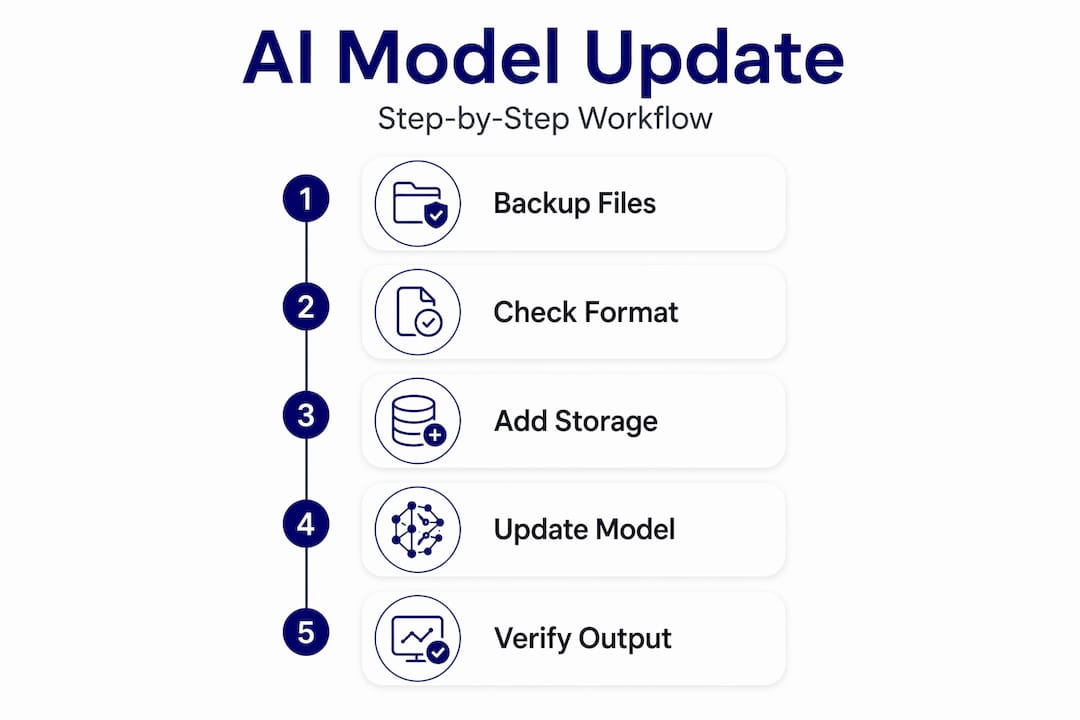
Back up your current model files and any YAML configs before making any changes. Create a simple versioned folder structure like models/llama3-8b/v1/ and models/llama3-8b/v2/ so you can roll back in minutes rather than hours.
Step-by-step process for updating models manually
This is where precision matters. Each step in the manual update process builds on the previous one, and skipping any step creates problems that can be hard to diagnose later.
Updating with Ollama
Ollama does not have a native update command for models. To get the latest build, you manually re-run the pull with ollama pull <model_name>:<tag>. Ollama compares the local manifest against the remote registry and only downloads changed layers, making re-pulls efficient for minor version bumps.
If a model is corrupted or stuck on an outdated build, the fix is:
- Run
ollama rm <model_name>to remove the corrupted model and its blobs entirely. - Run
ollama pull <model_name>:<tag>to fetch a clean copy. - Verify with
ollama listto confirm the updated model and its size match the registry.
For offline or air-gapped environments, use Pullama to pre-download the full model to a local directory, then point Ollama to the local blob path. This avoids partial downloads that can silently corrupt a model without flagging an error.
Updating a fine-tuned model with llama.cpp
This workflow applies when you have fine-tuned a base model and need to update your local installation. Fine-tuning adapters must be merged with the base model before any conversion step. Skipping the merge and going straight to conversion produces a broken GGUF file that may load without an error but will generate garbage output.
- Merge your LoRA adapter into the base model weights using the merge script from your fine-tuning framework (e.g.,
merge_lora_weights.pyin Axolotl or similar). - Convert the merged model to F16 GGUF format:
python convert_hf_to_gguf.py --outtype f16 ./merged_model --outfile model_f16.gguf - Quantize to your target format:
./llama-quantize model_f16.gguf model_q4km.gguf Q4_K_M - Move the quantized file to your models directory and update any config files pointing to the old model path.
- Remove the F16 intermediate file after confirming the quantized model loads correctly, since it consumes significant disk space.
Pro Tip: Missing fields like rope_scaling in your model config break GGUF files in ways that look like silent corruption. Always compare your config against a reference config from the base model before running conversion.
One more thing on quantization: Q4_K_M is the recommended default for consumer hardware because it uses a K-quant scheme that preserves attention heads at higher precision than older Q4_0 methods, which directly affects coherence in longer outputs.
How to safely reload updated models
Swapping the model file is only half the work. Getting the runtime to recognize the update without side effects requires deliberate action.
Why config changes do not auto-apply
If you run LocalAI and edit a model’s YAML config (say, bumping context_size from 4096 to 8192), the running backend does not reload automatically. The file on disk changes. The process in memory does not. Your inference server continues running the old context window until you force a reload.
The correct approach depends on your setup:
- API-level unload: Call the LocalAI API endpoint to explicitly unload the model:
POST /v1/models/unload/<model_id>. The backend will reload the updated config on the next inference request. - Container restart: In Docker-based deployments,
docker restart <container_name>forces a full reload. Heavier, but reliable. - Process restart: For bare-metal llama.cpp server deployments, stop the server process and restart with the updated flags or config file.
Pro Tip: Always verify context_size and tokenizer settings after a reload. A context window mismatch between your config and the model’s actual architecture produces truncated outputs without an obvious error message.
Chat template mismatches are a silent killer
The --chat-template parameter is easy to overlook and expensive to get wrong. A template mismatch between model and tokenizer produces garbled, incoherent output because the model’s special tokens (system, user, assistant delimiters) are being applied in the wrong format. When you update a model from one architecture to another, such as from Llama 2 to Llama 3, the chat template must change too. Llama 3 uses the llama3 template format. Llama 2 uses chatml in many fine-tuned variants. Getting this wrong is a common reason developers assume an update “broke” their model when the model itself is fine.
Troubleshooting and verifying successful updates
A successful file update is not the same as a successful model update. Here is how you actually confirm things are working correctly.
Detecting common update failures
- Incomplete downloads: Check file size against the registry or source manifest. Ollama’s
ollama listshows local file sizes. A 7B Q4_K_M model that shows 2.1 GB instead of 4.5 GB is truncated and needs to be removed and re-pulled. - Malformed GGUF files: Run
llama-cli --model model_q4km.gguf --prompt "test" -n 10before deploying. A malformed GGUF crashes immediately with a clear error rather than silently producing bad output. - Config field omissions: If the server starts but produces empty or repetitive outputs, compare your YAML config against the model card on the source repository. Missing
rope_scalingor wrongmodel_typeare common culprits. - Template mismatches: Run a simple multi-turn conversation with a known prompt/response pair. If the model echoes the prompt or produces role-switching errors, the chat template is wrong.
- Silent performance regressions: Major model updates occur roughly every two to four months. Even when the model name is stable, behavior can shift. Run your evaluation suite immediately after every update.
Using golden eval sets for behavior verification
File diffs tell you nothing meaningful about model quality. A model update can change one weight file and completely alter reasoning behavior. Evaluating output quality against golden eval sets is the only way to detect these silent regressions. A golden eval set is a curated set of prompts with expected outputs covering your specific use cases. It does not need to be large. Twenty to fifty well-chosen examples catch most regressions.
| Verification check | Method | Passes if… |
|---|---|---|
| File integrity | Size check vs. manifest | Size matches registry value |
| Load test | llama-cli quick prompt |
No crash or error on load |
| Output coherence | Single-turn prompt test | Response is on-topic, no looping |
| Multi-turn behavior | Role-based conversation test | Roles maintained across turns |
| Task performance | Golden eval set | Score matches or exceeds previous version |
For validating AI-generated outputs after an update, treat your eval run the same way you would treat a test suite before a production deployment. If the score drops meaningfully, roll back to the previous version while you investigate.
My honest take on manual model updates
I’ve watched developers treat model updates like a simple file swap, and it almost always ends with an incident. The model loads. The server responds. But two days later, someone notices the outputs are different in a way that nobody can pinpoint. That’s because AI model updates require behavior validation the same way backend deployments do. File versioning alone is not sufficient.
What I’ve learned from maintaining local AI environments is that the verification step is where the actual work lives. The download and conversion are mechanical. The evaluation is the discipline. I’ve also found that developers who skip the chat template check create more problems for themselves than any other single mistake. It’s the one configuration error that makes a genuinely good model look broken.
My advice: build a small, opinionated update checklist and follow it every time. Make it a habit before it becomes a post-mortem.
— steve
Local AI management made simpler with Mingllm
Managing model files, conversion pipelines, and configuration reloads manually is powerful but time-intensive. Mingllm is built for exactly this kind of local AI model management, running entirely on your hardware with full privacy and control. The platform gives you transparency into model behavior, native macOS integration, and a local-first architecture that keeps your data on your device.

If you want the control of local AI without rebuilding your update workflow from scratch every time a new model drops, explore Mingllm and see how it fits into your development environment.
FAQ
How do I update an Ollama model manually?
Run ollama pull <model_name>:<tag> to re-fetch the latest version. If the model is corrupted, remove it with ollama rm first, then re-pull.
What is Q4_K_M and why use it for local models?
Q4_K_M is a GGUF quantization format that reduces model size to roughly 35% of the F16 version while preserving output quality better than older Q4_0 methods. It is the standard choice for consumer GPU and CPU inference.
Why does editing my LocalAI config not change model behavior?
Editing a YAML config file updates the file on disk but does not reload the running backend. You need to unload the model via API call or restart the container for changes like context_size to take effect.
How often should I update my local AI models?
Major model updates occur approximately every two to four months. Run a full evaluation against your golden eval set within the first two weeks after any update to catch silent behavioral changes.
What causes garbled output after a model update?
A chat template mismatch is the most common cause. When the --chat-template parameter does not match the model’s tokenizer format, the model’s special tokens are applied incorrectly, producing incoherent or role-switching output.