Extend Local AI with New Tools: A Developer’s Guide

Local AI setups give you real privacy and control, but the out-of-the-box experience rarely matches what serious developers actually need. If you’ve tried to extend local AI with new tools and hit walls around model compatibility, broken context, or sluggish performance on your own hardware, you’re not alone. This guide walks you through every stage of the process: what to prepare, how to configure, what goes wrong, and how to verify you’ve actually improved your setup. No hand-waving, no cloud dependencies required.
Table of Contents
- Key takeaways
- Extend local AI with new tools: prerequisites and preparation
- Step-by-step integration and configuration
- Troubleshooting common extension challenges
- Evaluating and verifying your AI extension
- My honest take on extending local AI
- Take your local AI further with Mingllm
- FAQ
Key takeaways
| Point | Details |
|---|---|
| Assess hardware before choosing tools | Match token context window size and RAM to the models and tools you plan to run locally. |
| Use a proxy daemon for multi-tool setups | Tools like ToolRouter preserve session context when switching between AI coding tools without API key changes. |
| Verify tool-use protocol support first | Not every local model supports tool-calling protocols, which blocks full IDE agent integration. |
| Sandbox your local AI for safety | Hardware-isolated sandboxes protect your filesystem and maintain privacy when running local AI assistants. |
| Measure before and after extension | Track concrete metrics like task completion time and context persistence to confirm your setup actually improved. |
Extend local AI with new tools: prerequisites and preparation
Before you install anything, you need an honest picture of what your hardware can actually run. A machine with 16GB unified memory handles smaller models well, but once you start stacking tools, a web scraper, a local inference server, and a proxy layer, memory pressure becomes real fast. Check whether your CPU or GPU supports quantized inference, and look up the token context window each model requires. The JetBrains default context window is 64,000 tokens, which is configurable, but pushing that number up without enough RAM will stall your workflow.
Tool selection is where most developers make mistakes. Reaching for the most popular tool is not the same as reaching for the right tool. Prioritize open-source toolkits that expose their configuration fully, let you run entirely offline, and support modular extension without forcing you onto a vendor’s inference backend. Canonical’s Ubuntu AI strategy in 2026 explicitly favors opt-in modular AI snaps for this reason. The philosophy translates directly: local AI should be composed, not prescribed.
Comparing popular local AI toolkits
| Tool | Primary Function | Local-Only | Privacy Model | Key Requirement |
|---|---|---|---|---|
| Ollama | Model server and API | Yes | Full local | 8GB+ RAM |
| LM Studio | GUI model runner | Yes | Full local | macOS/Windows |
| CrawlForge v4.2.2 | Web scraping with local AI | Yes | Zero API fees | Ollama instance |
| ToolRouter | Multi-tool proxy daemon | Yes | Token tracking local | Active AI session |
| Osaurus | Sandboxed macOS assistant | Yes | Hardware isolation | macOS device |
One tool worth calling out specifically is CrawlForge v4.2.2, which bundles 23 scraping tools, defaults to a local Ollama instance, and costs exactly $0 per extraction on the free tier. That makes it one of the best tools for local AI developers who need structured web data without leaking queries to a remote API.
Pro Tip: Before installing any tool, run a baseline benchmark: time how long your current setup takes to complete a standard code completion task. You’ll want that number when verifying improvements later.
Privacy configuration deserves its own pass before you get to installation. Osaurus demonstrates what the gold standard looks like: local AI assistants running inside hardware-isolated sandboxes with controlled access to the filesystem and browser. That architecture, AI inside a constrained environment rather than running with full system permissions, should be your mental model for any local AI integration you build.
Step-by-step integration and configuration
With your environment assessed and your tools selected, you can move to actual installation. This is the section most guides skip past too quickly, so the steps below treat each decision point as something that requires a choice, not a default.
- Install your model server. Set up Ollama or LM Studio first. Pull the specific model variants you’ll use (not every model size, just the ones that fit your hardware headroom). Verify the API endpoint responds locally before touching anything else.
- Configure your IDE integration. For VS Code or JetBrains, point the AI assistant at your local model endpoint. In JetBrains, the context window is configurable per project; start at 32,000 tokens and increase only if your hardware handles it without swapping to disk.
- Install ToolRouter for multi-tool setups. The ToolRouter proxy daemon injects “Handoff Briefs” between tools so your session context survives switching. It tracks token spend per tool locally with no API key changes required, which means you can move between an IDE agent and a scraping tool without losing the thread of your work.
- Apply sandboxing. Whether you use macOS sandbox profiles or Osaurus-style hardware isolation, restrict which directories and system resources each AI tool can access. This step protects you against secure AI protocol failures where a tool writes or reads beyond its intended scope.
- Create an AGENTS.md file in each project repo. AGENTS.md files give AI coding agents your domain conventions, architectural rules, and project-specific vocabulary at startup. This single step measurably reduces hallucinated suggestions in local workflows.
- Tune performance settings. Adjust batch size and thread count in your model server config based on observed CPU utilization. For Apple Silicon, verify Metal GPU acceleration is active. For Linux, confirm CUDA or ROCm paths are loaded correctly.
Configuration reference table
| Tool | Key Config Parameter | Recommended Starting Value | Notes |
|---|---|---|---|
| Ollama | "num_ctx` | 4096 to 8192 | Increase for complex tasks |
| JetBrains AI | Context window | 32,000 tokens | Scale up if RAM allows |
| ToolRouter | Handoff Brief depth | 3 turns | More turns use more tokens |
| CrawlForge | Extraction backend | local_ollama |
Avoid remote fallback |
| Osaurus | Sandbox profile | Strict | Loosen only per explicit need |
Pro Tip: Log every config change with a timestamp and a one-line note about why you made it. When something breaks at 2 AM, that log is the fastest path to a fix.
Troubleshooting common extension challenges
The most frequent problem you’ll hit is model incompatibility with tool-use protocols. This is not obvious from a model’s README. A model can appear in your tool’s UI while being completely unable to participate in IDE agent workflows because it lacks tool-calling support. The symptom is usually a silent failure: the agent accepts your prompt and returns nothing, or falls back to a non-agentic completion mode without warning you.

Token overflow is the second most common issue, and it compounds with multi-tool setups. When your combined context (conversation history, injected project files, tool outputs) exceeds the model’s window, the model silently truncates the oldest tokens. You lose context without an error message. The fix is proactive: watch your token budget in real time using ToolRouter’s local token tracking, and set hard limits on how much file content gets injected per request.
Memory errors during model loading usually point to one of three causes:
- The model size exceeds available unified or VRAM capacity
- Another process is holding memory that should be free (check Activity Monitor or
htop) - Your context window setting is higher than the model’s actual maximum supports
“Success with sovereign AI depends on complete software and hardware stacks and proper tooling for secure, effective local workflows.” Partial setups, where you’ve installed the model but skipped the proxy layer or the sandboxing, invite exactly the instability and data exposure you were trying to avoid by going local in the first place.
For performance bottlenecks, start with the obvious: is the model actually running on your GPU, or has it silently fallen back to CPU? Check model server logs immediately after loading. GPU inference on Apple Silicon is typically 4 to 8 times faster than CPU-only for comparable models. Fixing the acceleration path alone often resolves what looks like a fundamental performance problem. You can also review AI model switching strategies to reduce unnecessary context reloads between tasks.
Pro Tip: Run ollama ps to confirm which models are currently loaded in memory and how much VRAM each is consuming. Unload idle models before starting a new heavy task.
Evaluating and verifying your AI extension
Once you’ve extended your setup, you need evidence that it actually worked. Intuition is not a metric.
The most honest way to assess improvement is to compare specific task outputs before and after the extension. Time a code generation task, a document summarization, or a web research query with your baseline and then with the new toolchain in place. Track whether context persists correctly across tool switches and whether the AGENTS.md file reduced the number of suggestions you had to reject.
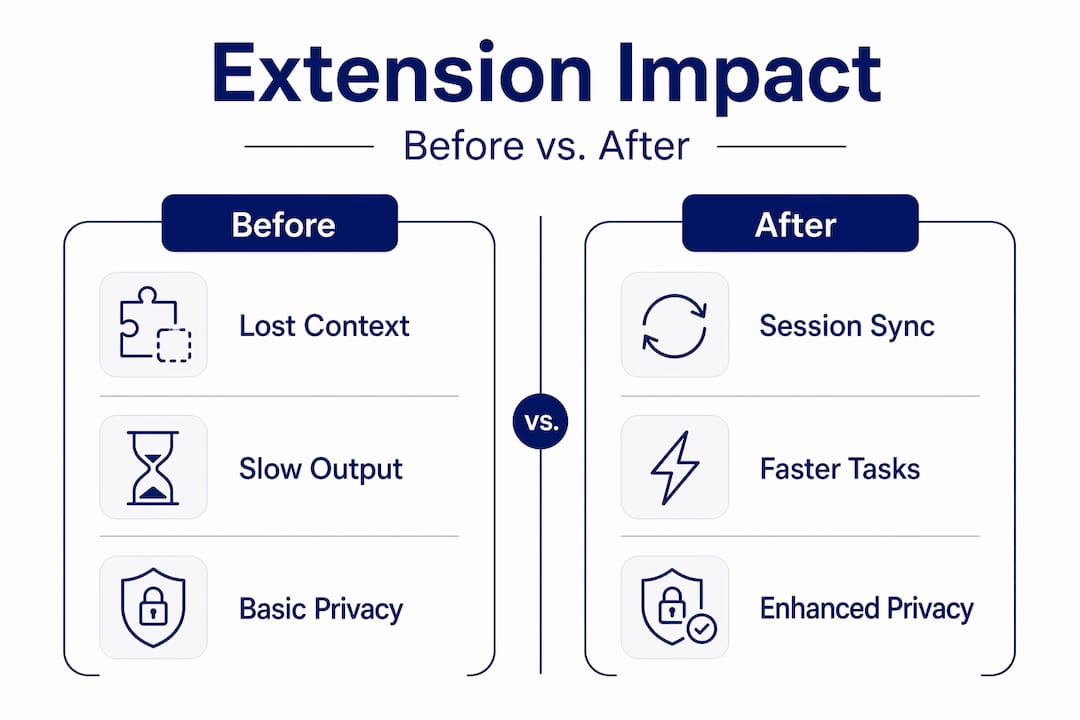
Before vs. after extension comparison
| Capability | Before extension | After extension |
|---|---|---|
| Multi-tool context | Lost on every switch | Preserved via ToolRouter handoffs |
| Web data access | Manual copy-paste | Automated via CrawlForge locally |
| IDE agent integration | Cloud model required | Local model with tool-calling support |
| Privacy posture | Partial (some cloud calls) | Full local with sandboxed access |
| Token spend visibility | None | Per-tool tracking via ToolRouter |
Beyond benchmarks, test your privacy improvements directly. Check your network activity monitor during an AI task. With a correctly configured local setup, you should see zero outbound requests to external AI endpoints. If you spot any, trace which tool triggered them. Tools that silently fall back to remote APIs are a common culprit.
For ongoing monitoring, keep an eye on AI interaction history and session logs. Good local AI systems maintain detailed action logs precisely so you can audit what happened and why. That transparency is not just a feature. It is how you catch configuration drift before it becomes a problem.
My honest take on extending local AI
I’ve watched developers spend weeks chasing the perfect local AI setup, only to abandon it because one tool didn’t play nicely with another and they had no framework for diagnosing why. The hard truth I’ve come to is this: extending local AI with new tools is an architecture problem first and a software problem second.
Most guides treat it as a software checklist. Install this, configure that. But the developers who actually get durable results approach it differently. They decide upfront what data must never leave the machine, what tools genuinely need to compose together, and what a “working state” looks like. Then they build toward that picture incrementally.
What I’ve seen trip people up most consistently is the gap between a tool’s marketing and its actual hardware requirements. A model that runs “smoothly” on a demo machine with 64GB of RAM behaves completely differently on a developer’s 16GB laptop once you add the scraping layer and the proxy daemon on top. Plan for the real machine, not the aspirational one.
The other lesson I keep coming back to is the value of modularity. Every time I’ve seen a local AI setup break badly, it was because someone had tightly coupled too many components. Loose coupling, where each tool does one job and hands off cleanly, gives you the ability to swap, upgrade, or debug individual pieces without burning everything down. That’s private AI thinking applied to architecture: keep control granular, keep dependencies explicit, and never let a single point of failure own your entire workflow.
— steve
Take your local AI further with Mingllm
If you’ve worked through this guide and want a platform that already implements these principles at the architecture level, Mingllm is built exactly for this use case. It runs entirely on your device, with no cloud inference, no external API calls, and no data leaving your hardware. The modular design means you can compose voice, browser, research, and coding workflows without stitching together five separate tools yourself.
Mingllm’s action logs and proof traces give you the kind of post-task transparency this guide recommends for verification. Its sandboxed local execution and reversible actions reflect the same privacy-first architecture that makes local AI worth building in the first place. For developers on macOS who want personal superintelligence without the infrastructure tax, Mingllm is the platform to start from. Explore the best AI research tools that pair well with it, and see how far your local setup can actually go.
FAQ
What does it mean to extend local AI with new tools?
Extending local AI with new tools means adding software components, such as proxy daemons, web scrapers, or IDE integrations, that enhance what your locally running AI model can do while keeping all data on your hardware.
Which tools are best for enhancing local AI capabilities?
Ollama, LM Studio, ToolRouter, and CrawlForge are among the most practical options in 2026, each covering model serving, multi-tool context management, and local web scraping without sending data to external APIs.
How do I know if my local AI model supports tool-use protocols?
Test the model inside your IDE agent workflow directly. Models that lack tool-calling support will appear in the UI but fail silently when asked to execute agent tasks.
How can I preserve context when switching between local AI tools?
A local proxy daemon like ToolRouter injects session handoff briefs between tools, preserving context and tracking token usage locally so you can switch tools without losing your working state.
Is sandboxing necessary for local AI setups?
Yes. Hardware-isolated sandboxes, like those used by Osaurus on macOS, restrict an AI assistant’s filesystem and browser access, protecting you from unintended data exposure even when running fully offline.